
Appearance
Free Trail
This page explains how product trials work in SaasForgeKit billing.
Where trial is configured
Trials are configured per product in:
text
Admin -> Pricing -> Edit product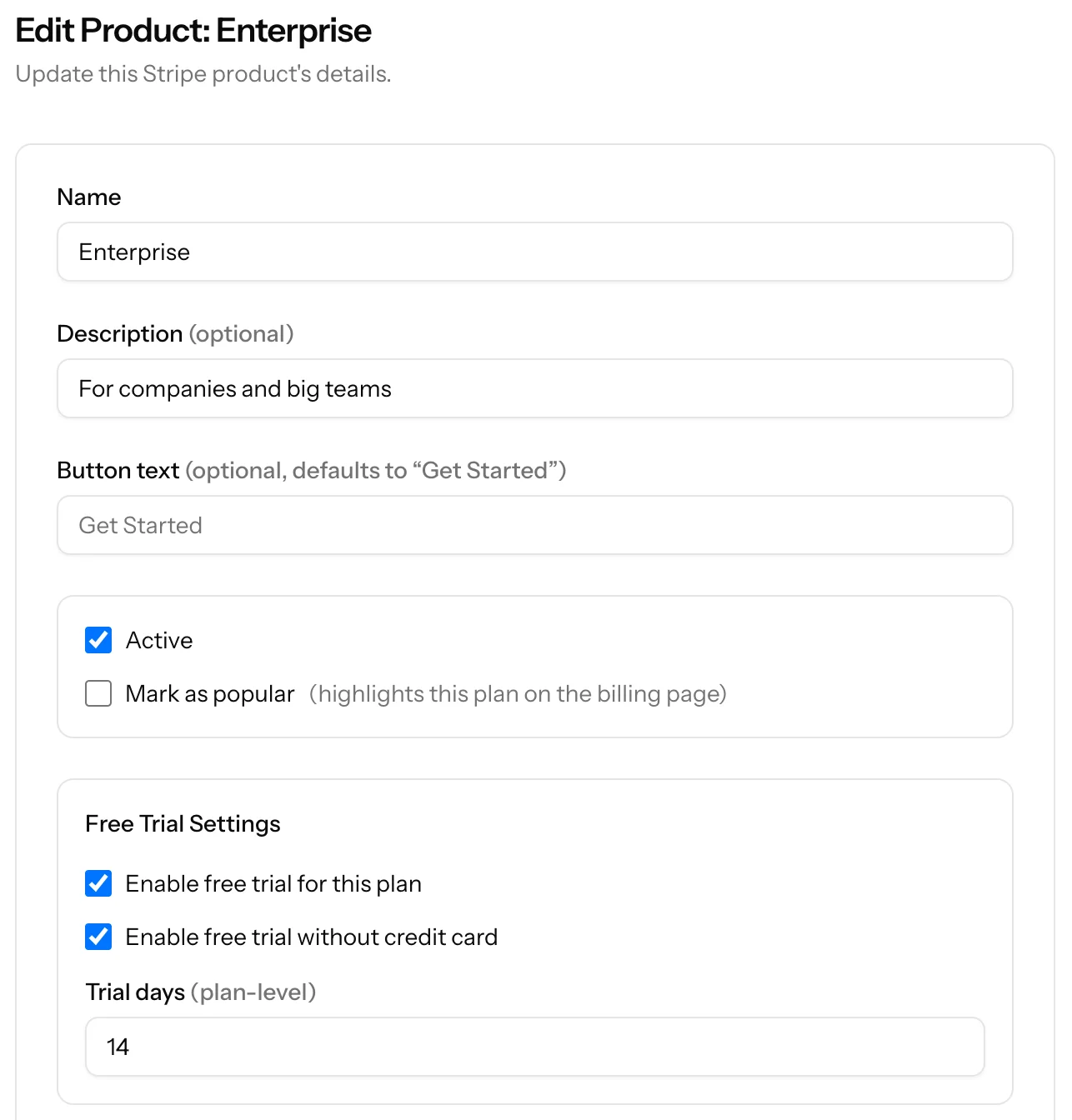
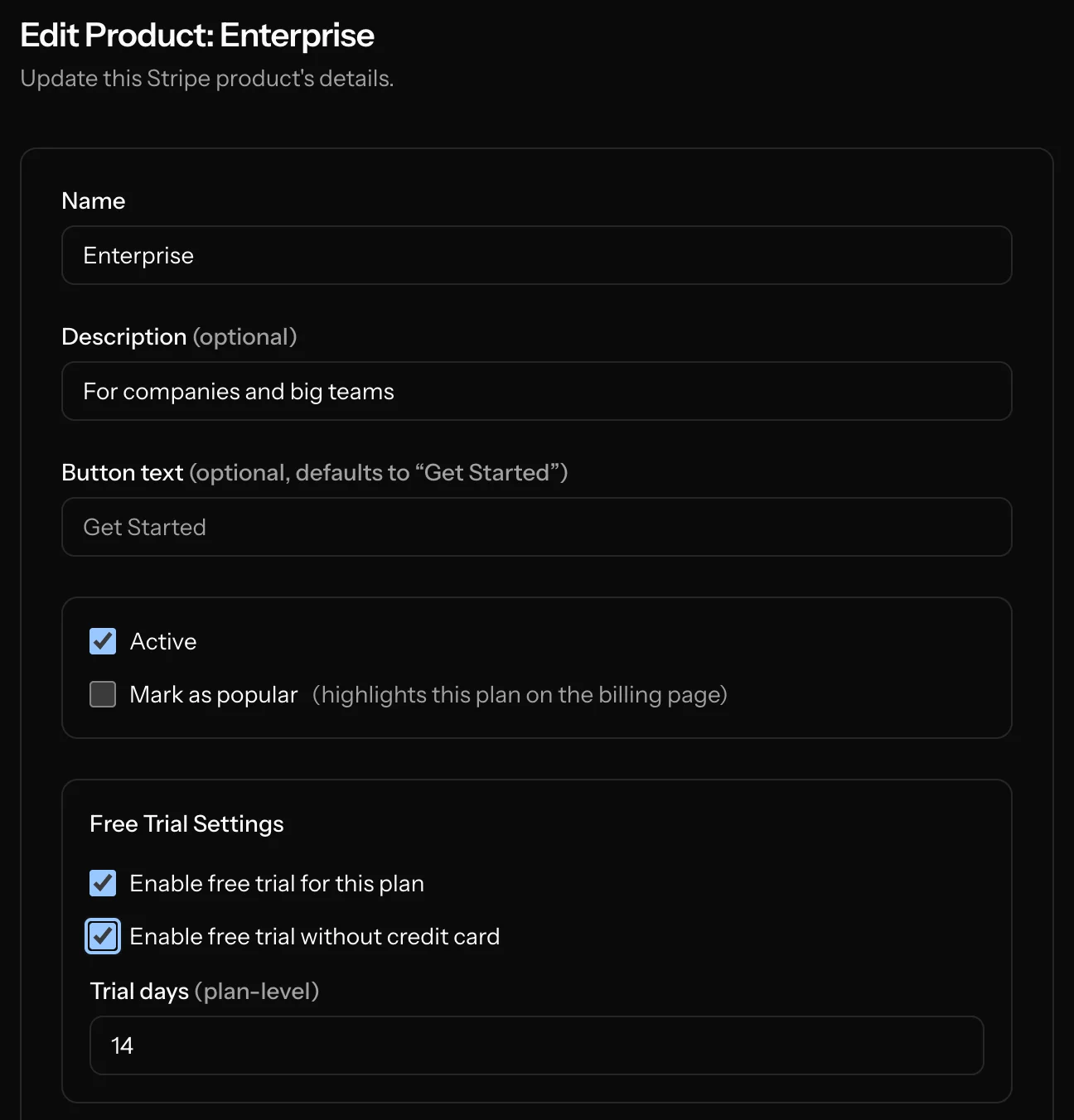
There is no single global trial toggle. Trial behavior comes from product metadata.
Trial settings per product
For each product, you can configure:
trial_enabled- turns trial on/off for that producttrial_days- trial duration (1 to 365)trial_without_card- allows checkout without collecting a card during trial
If trial_enabled is off, trial days and no-card mode are ignored.
How trial starts
When a user starts checkout for a product with trial enabled:
- The subscription is created with a trial end date (
now + trial_days, end of day). - If no-card trial is enabled, checkout is configured to collect payment method only when required.
Source of truth and sync behavior
SaasForgeKit reads trial metadata from Stripe product metadata and treats Stripe as canonical.
Practical effect:
- If local trial values differ from Stripe metadata, local values are updated to match Stripe.
- If Stripe lookup fails temporarily, local values are used as fallback so checkout can proceed.
How trial appears in the app
On the billing page:
- Trial-enabled products show trial messaging in pricing cards.
- Active trial subscriptions show a trial status and remaining-days banner.
In admin/user views, trialing subscriptions are represented as trialing status.
Free Trail and Free Tier interaction
- A workspace on generic trial cannot join Free Tier.
- A workspace with active paid/trial subscription is not treated as Free Tier.
- When subscription status becomes
activeortrialing, Free Tier flags are cleared.
Recommended validation checklist
- Enable trial on a test product.
- Set
trial_daysand verify trial label appears on billing page. - Test both modes:
- trial with card
- trial without card
- Complete checkout and confirm subscription status is
trialing. - Verify trial countdown and transition to paid status at trial end.