
Appearance
Seat Base Pricing
This page explains how seat-based billing works in SaasForgeKit products.
Where seat pricing is configured
Seat pricing is configured per product in:
text
Admin -> Pricing -> Edit product

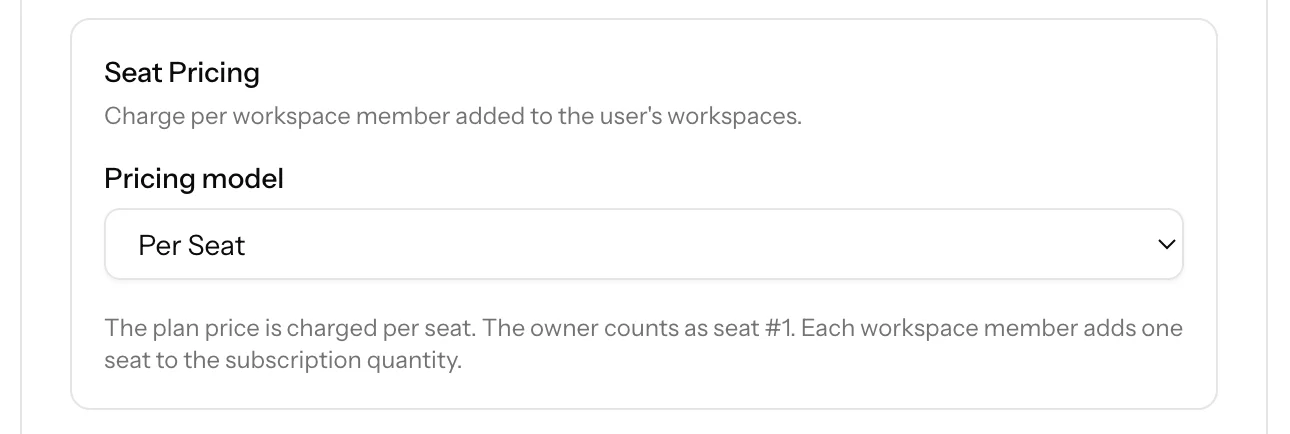
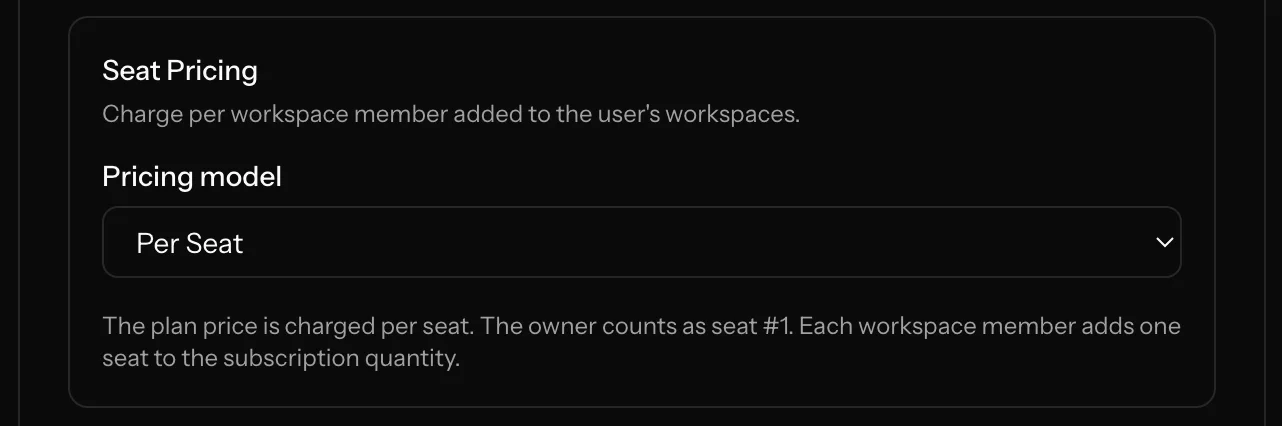
In product edit, choose the seat pricing model:
noneper_seatbase_plus_seat
Prerequisite: Workspaces must be enabled
Seat-based billing depends on workspace memberships.
If workspaces are disabled, seat pricing cannot function as expected.
Enable and configure workspaces first in admin settings, then configure seat pricing.
For full workspace setup, see:
In product edit, choose the seat pricing model:
Seat pricing models
1) none
- Standard recurring product pricing
- No seat quantity logic is applied
2) per_seat
- Product price is charged per seat
- Subscription quantity is set from active member count
- Owner counts as seat #1
3) base_plus_seat
- One base recurring price for the product
- Additional seat charge is applied using a separate seat-type price
- Seat quantity represents additional members beyond owner
Price setup requirements
For per_seat
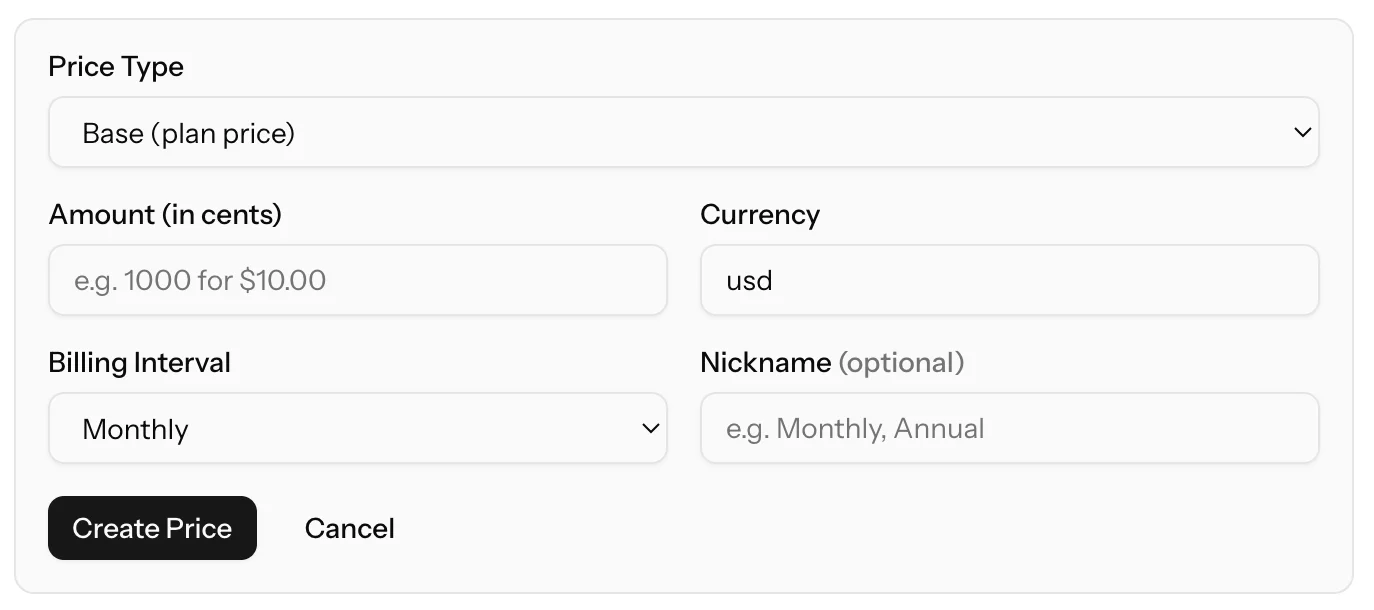
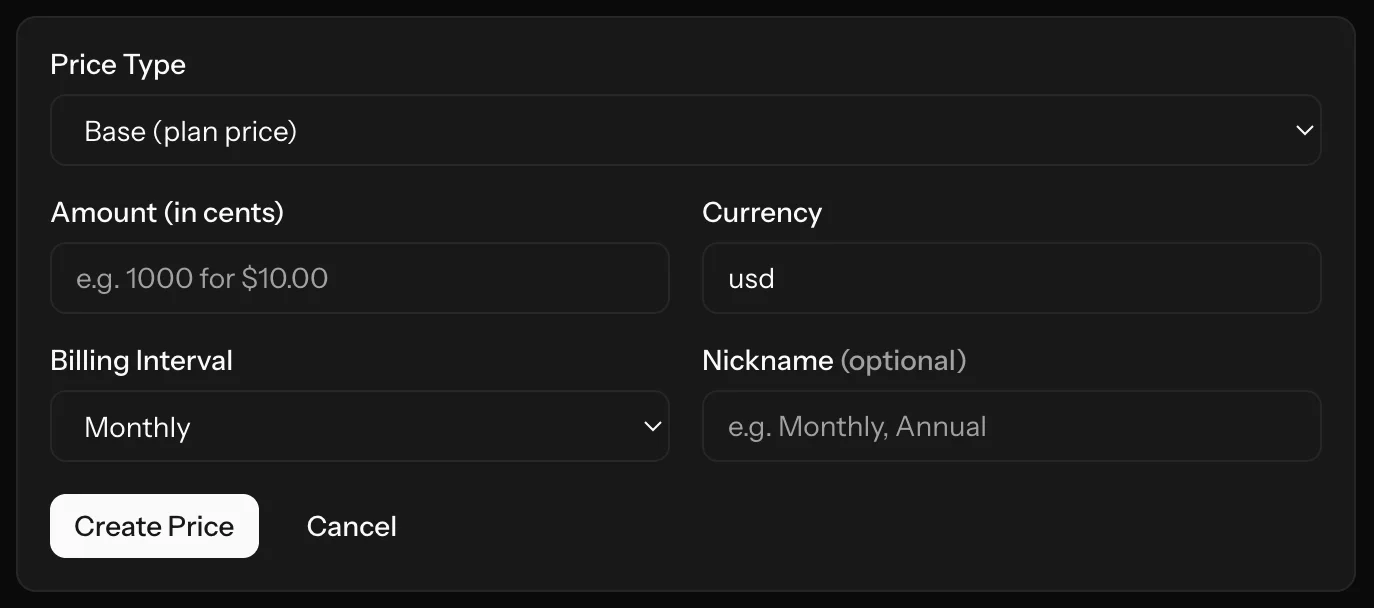
- Create normal recurring prices (base type)
- Subscription quantity scales with member count
For base_plus_seat
- Create at least one base recurring price
- Create matching seat recurring price(s) (price type =
seat) - Keep interval alignment consistent (for example monthly base with monthly seat)
If no valid seat price is available for the active interval, seat add-ons cannot be synced for that product.
How seat count is calculated
Seat count is derived from active workspace memberships across non-personal workspaces owned by the account owner.
per_seat: counts all active members (including owner)base_plus_seat: counts active non-owner members only
How changes are applied
When workspace members are added or removed, SaasForgeKit automatically syncs subscription quantities.
Behavior by model:
per_seat: updates subscription quantity directlybase_plus_seat:- adds seat price when additional seats become > 0
- updates seat quantity when member count changes
- removes seat price when additional seats return to 0
Seat change notification emails can be sent if billing emails are enabled in admin settings.
How it appears in billing UI
- Pricing cards show seat-aware text for each model
- Active subscriptions show seat breakdown in billing page:
- base amount
- seat amount
- total recurring amount
Recommended setup checklist
- Choose seat pricing model on product edit page.
- Create appropriate prices for that model.
- Verify product is active and prices are active.
- Start a test subscription.
- Add/remove workspace members and confirm quantity updates.
- Verify billing page totals and seat messaging.