
Appearance
Social Auth Configuration
This page covers how to enable and control social login in SaasForgeKit.
SaasForgeKit social authentication is built on top of Laravel Socialite.
Admin location
Configure social auth from:
text
Admin -> Settings -> Social Auth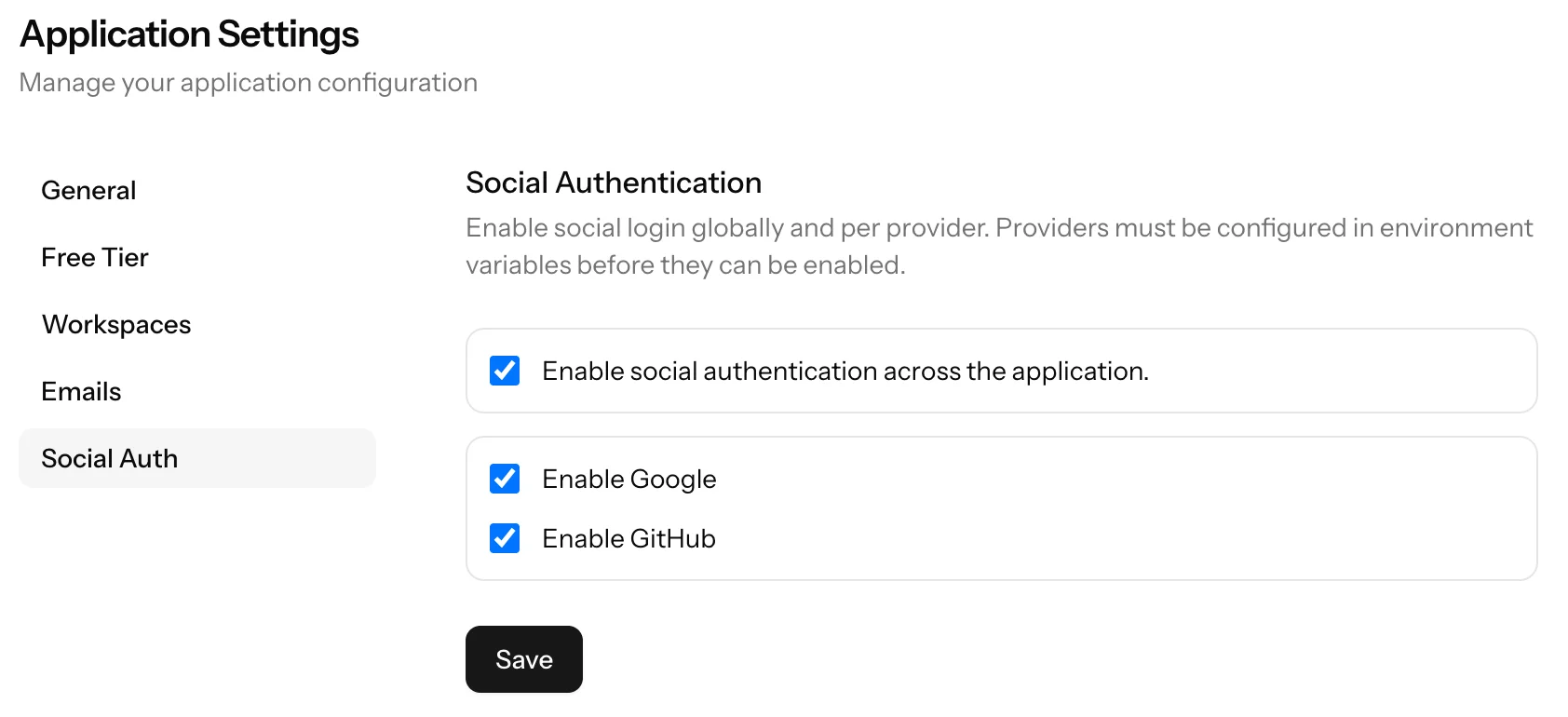
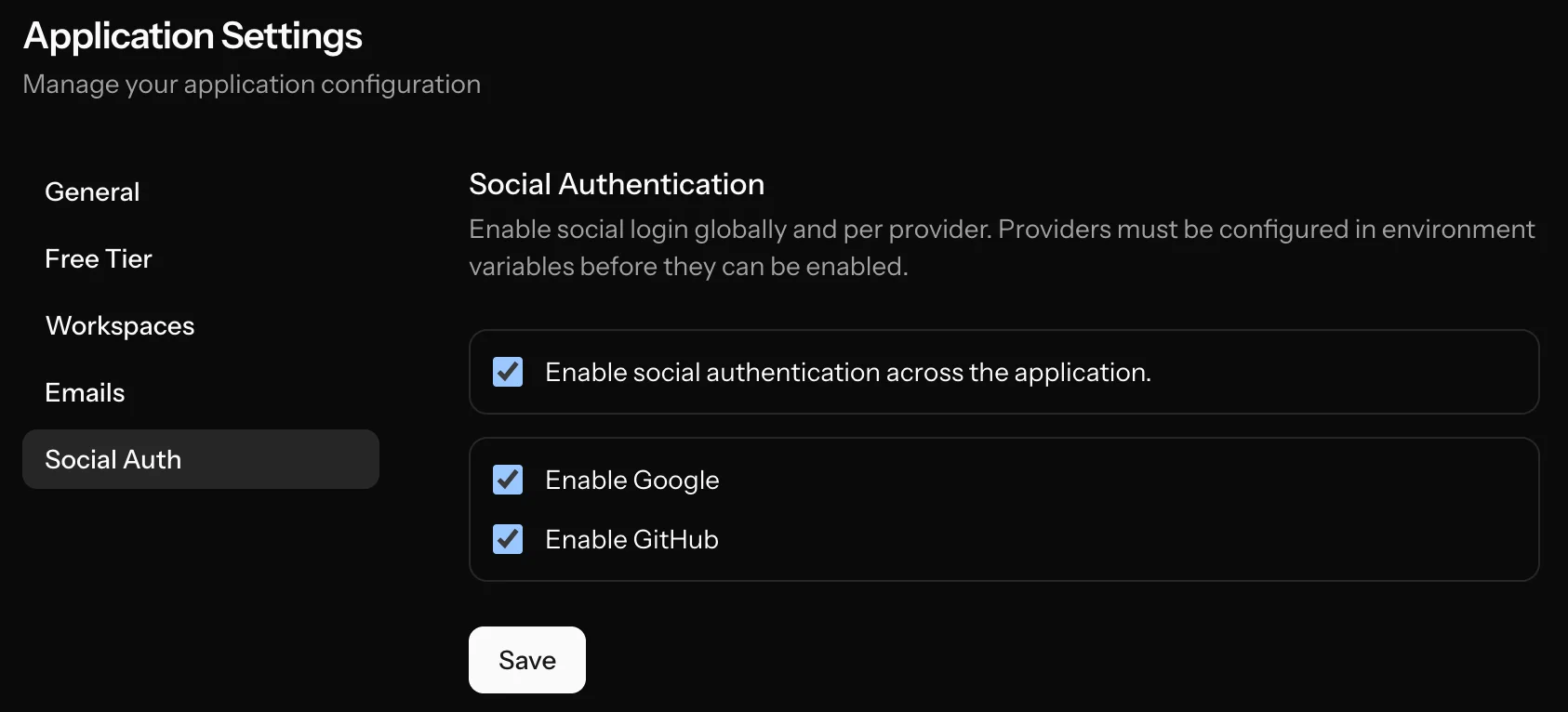
How configuration works
SaasForgeKit uses two layers:
- Global toggle (
social_auth_enabled) to enable/disable social auth app-wide - Provider selection (
social_enabled_providers) to enable specific providers
A provider can be enabled only if all required environment variables are present.
Supported providers
- GitHub
Adding additional providers
You can extend provider support beyond Google and GitHub.
Typical steps:
- Add provider credentials to
config/services.php. - Add provider entry to
config/social-auth.php(label,driver,required_config). - Add related env variables to
.env. - If needed, install and configure the corresponding Socialite provider package.
- Refresh configuration cache and enable the provider from:
Admin -> Settings -> Social Auth
Keep provider keys in lowercase and match redirect callback routes with your provider app configuration.
Authentication behavior
- If social auth is disabled globally, all provider login buttons are unavailable.
- If a provider is enabled but env config is missing, it cannot be enabled in admin settings.
- If login is attempted with an unavailable provider, user is redirected back to login with a status message.
Account linking behavior
Users can link social providers from Connected Accounts settings.
Key rules:
- A provider account already linked to another user cannot be linked again.
- If email already exists for a password account, user must first log in with password, then link provider.